
Prepare your device for repair 

Technician repairing a device at a repair centre

Step 1:

Back-up your device 

1. Connect to Wi-Fi and power

Make sure your device is connected to Wi-Fi and plugged into a power source.


2. Open settings and tap your name

- iOS: Go to the Settings app and tap your name at the top of the screen.

- Android: Open the Settings app on your device.


3. Find backup options

- iOS: Go to iCloud > iCloud Backup

- Android: Go to Google > Backup (may appear as Backup & Rest on some devices)


4. Enable and start backup

- iOS: Tap Back Up Now and keep the device connected until it finishes.

- Android: Make sure Back Up to Google Drive is turned on, then tap Back Up Now.


5. Confirm backup completion

- iOS: Check the timestamp of the last backup in iCloud settings.

- Android: Check the latest backup date and time under Google Account > Backup.


 Helpful tips:

Documents and data being uploaded to the cloud from a laptop

Step 2:

Turn off Find My Device / tracking services
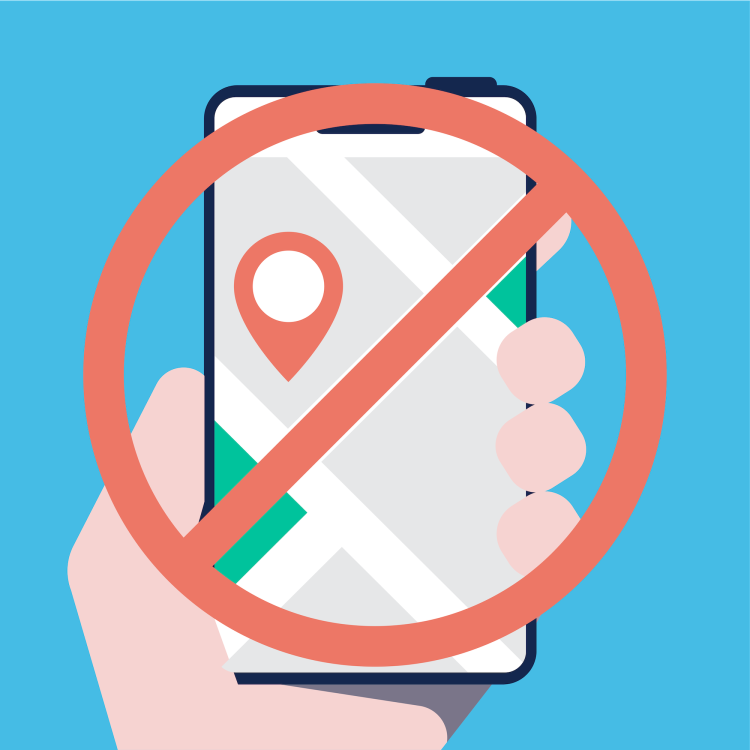
These features must be disabled — we can’t repair devices with remote lock or tracking enabled.

Steps:

  1. Disable on Apple devices (Find My iPhone/Mac)
    Go to Settings > [Your Name] > Find My > Find My iPhone, then toggle it off and enter your Apple ID password.
    For Macs: Go to System Settings > [Your Name] > iCloud > Find My Mac and turn it off.


  2. Disable on Android devices
    Go to Settings > Security > Find My Device, and turn it off.


  3. Remove smartwatches from your account
    Open the companion app on your phone (like Apple Watch app or Wear OS app) and unpair or remove the watch from your account.


  4. Turn off tracking on laptops

    Windows: Go to Settings > Privacy & security > Find my device and turn it off.

    Mac: See step 1 above.


 Helpful tips:

Red circle with a line through it placed over hand holding a phone showing a location pin

Step 3:

Wipe your data

Erase everything to protect your privacy and give us a clean device to work with.


iPhone or iPad: Go to Settings > General > Transfer or Reset iPhone > Erase All Content and Settings


Android phones or tablets: Go to Settings > System > Reset > Factory data reset, and confirm


Mac: Go to System Settings > General > Transfer or Reset Mac > Erase All Content and Settings


Windows laptop: Go to Settings > System > Recovery > Reset this PC > Remove everything


Smartwatches: Reset from the companion app or device settings. This varies by brand — check the manual if unsure.


Documents and data being erased from a laptop

Step 4:

Package your device

Careful packaging helps protect your device from damage during shipping.

Steps:

  1. Turn off the device
    Ensure the device is powered off before packing.


  2. Wrap securely
    Use bubble wrap or soft padding to protect the screen and body. Place it in a rigid box or padded envelope.


  3. Do not include accessories
    Please do not send chargers, cases, cables, or SIM cards — unless we specifically ask for them.


Device being placed in a parcel ready to send off for repair

Next Steps

Mail in repair

If you are preparing your device for a mail-in repair you can find further steps here

Device exchange

If you are preparing your device for an exchange you'll find more information here